
Accounts payable: recording and approving supplier invoices
Record and approve your supplier invoices in one place, and always know what you owe.
What you'll learn from this guide
- What Accounts Payable is for and the stages a supplier invoice moves through
- Where to find your supplier invoices and what each one shows
- How to add a supplier invoice step by step
- How to approve or cancel an invoice and keep a clear record of what you owe
What is it used for
When a supplier invoice arrives, you need to record it, approve it before it's paid, and keep track of what you still owe across your suppliers.
Accounts Payable is where you handle all of this. It holds the invoices you get from suppliers and lets you move each one through until it's done.
Use Accounts Payable to record what suppliers charge you, approve invoices before they're paid, and check each invoice against the purchase order it came from. You'll use it whenever an invoice arrives, when one needs approval before payment, or when you want to review what's owed.
The stages an invoice goes through
A supplier invoice moves through a few stages from the time you enter it to the time it's finished, and Meight only offers you the steps that make sense from wherever it is.
- Draft is where an invoice starts, once you've entered it but before it's been approved.
- Pending approval is when it's waiting for someone to sign it off.
- Approved is when it's been signed off and is ready to pay.
- Rejected is for an invoice that didn't pass and needs another look before it can move on.
- Final is when the invoice has been fully dealt with.
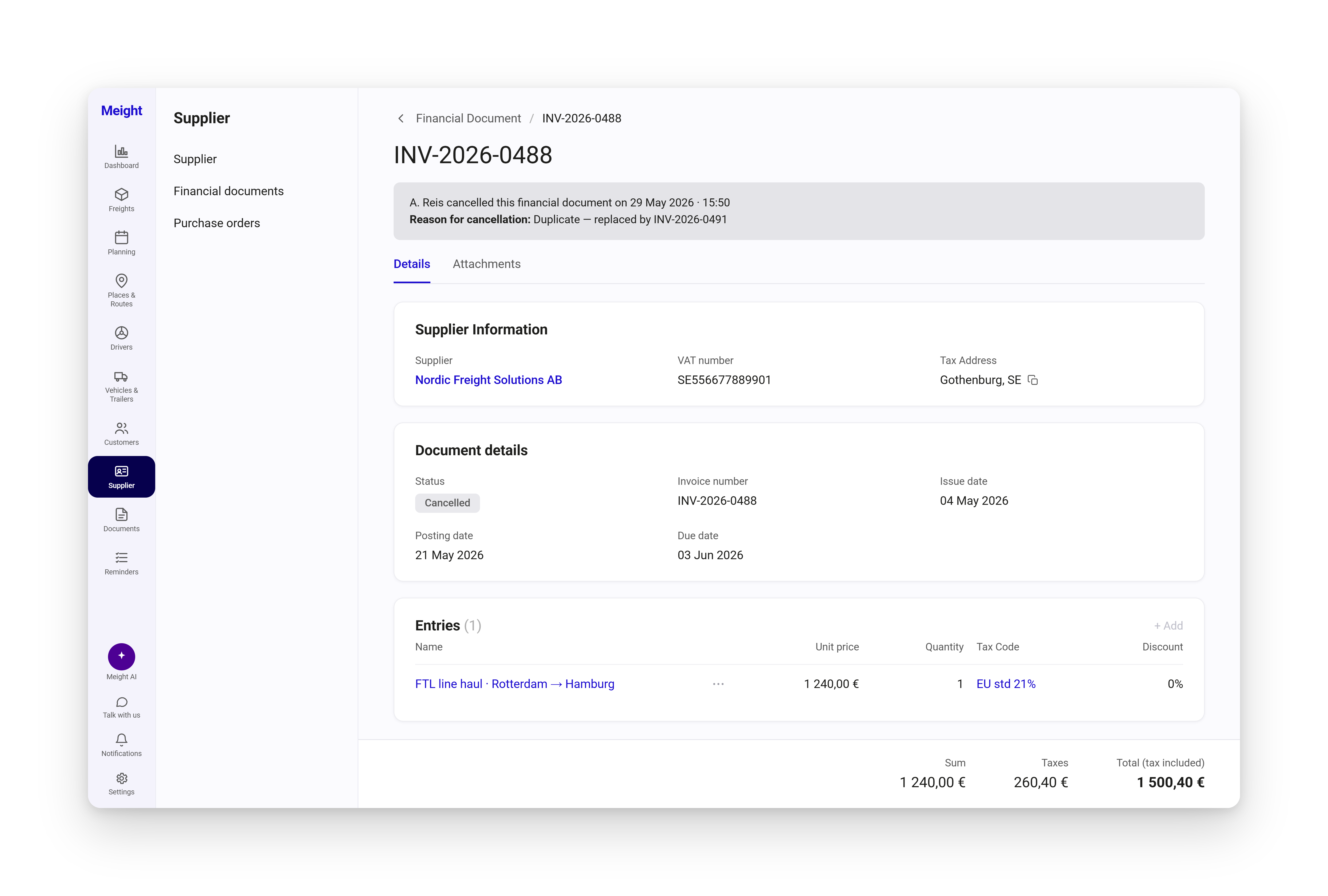
You can cancel an invoice once it has reached Final. When you do, you give a reason, and that reason stays on the record along with who cancelled it, so there's always a note of why it was cancelled.
Where to find them and what's on each invoice
You'll find the list under Supplier → Financial documents. It shows you each invoice's number, status, supplier, taxes, and total. Once you open an invoice you can see:
- Supplier Information
- Document details, which show the status, invoice number, issue date, and due date
- Entries, each with a unit price, quantity, tax code, and discount
- Attachments
The Sum, Taxes, and Total are added up for you from the entries.
How to add a supplier invoice
Open Financial documents
Go to Supplier → Financial documents. The list opens.
Create a new document
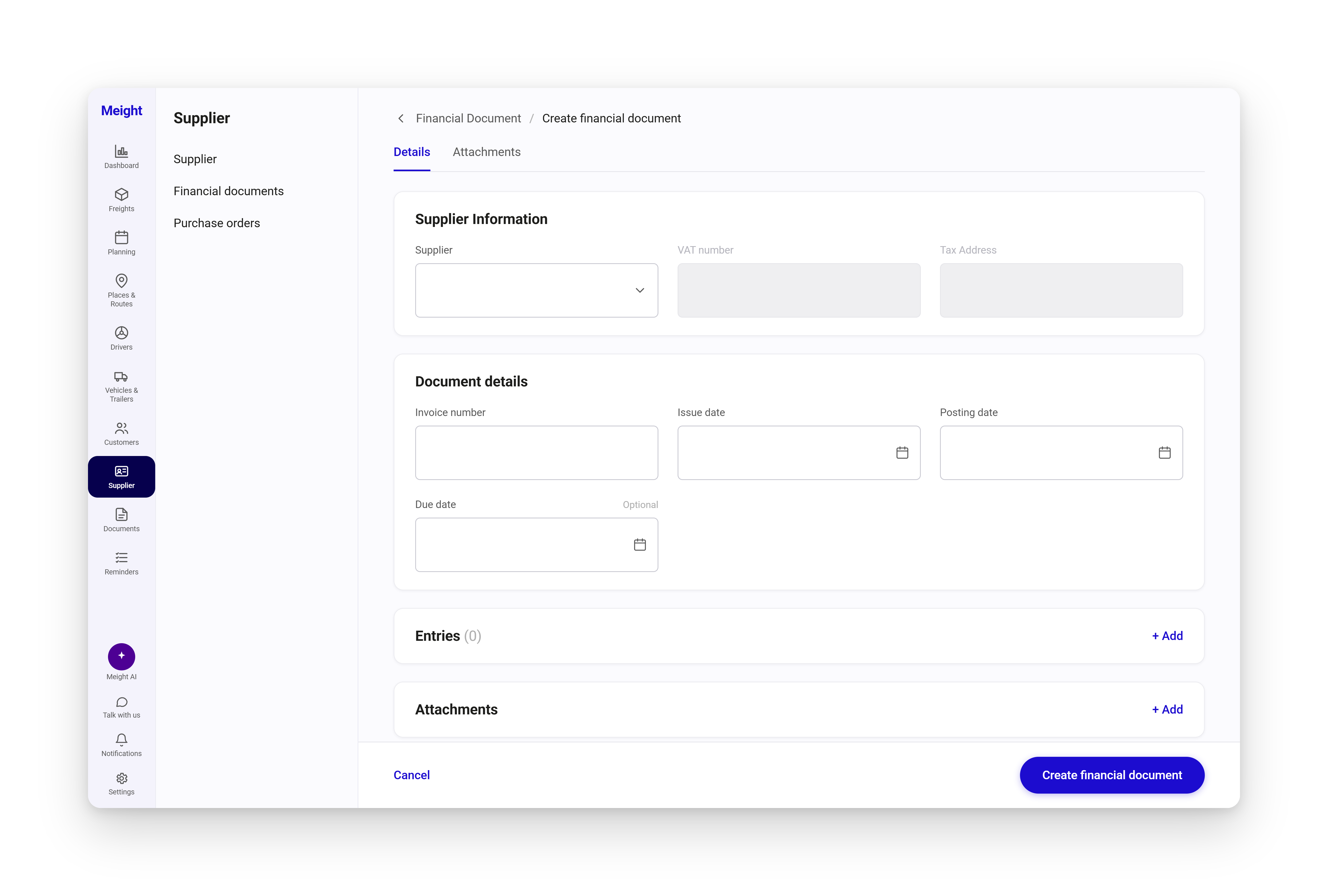
Select Create new. A form opens with the Supplier Information, Document details, and Entries sections, plus an Attachments tab.
Pick the supplier
Under Supplier Information, choose the supplier. The VAT number and tax address are filled in automatically.
Add the document details
Under Document details, enter the invoice number and the issue date. Add the due date and the posting date too, if you have them.
Add the entries
Under Entries, select + Add for each line and enter the name, unit price, quantity, tax code, and discount. The Sum, Taxes, and Total update as you go.
Attach the original
On the Attachments tab, attach the original invoice if you want to. It stays with the record.
Create the document
Select Create financial document. It's saved, and it starts as a Draft.
If the invoice is for subcontracted work you ran through a purchase order, you don't need to add it here by hand. When you issue the invoice on the purchase order, Meight creates it in Accounts Payable with the details already filled in, and keeps the two linked so you can move between the order and the invoice it raised. The full steps are in the Purchase order guide.
Changes to purchase orders
Purchase orders are now easier to review and manage, and they connect directly to Accounts Payable.
- Each purchase order opens in a full-page preview, with Properties and Document preview tabs.
- A new action panel brings together Issue Invoice, Move to rejected, and Other actions.
- Tasks show their own state, with the Sum, Taxes, and Total.
- Issue Invoice replaces the old bulk state change: the purchase order changes state and a supplier invoice is created in Accounts Payable.
For more, see the Purchase order guide.
Approve or cancel invoices
Open an invoice to see the stage it's at. As it gets checked and signed off, you move it on through approval until it reaches Final, and every change is saved on the invoice along with who made it.
Once an invoice is Final, you can cancel it if you need to. You give a reason when you do, and that reason stays on the record together with who cancelled it, so there's always a note of why.
Why does this matter for your operation?
Every supplier invoice now sits in one place, with its entries, attachments, and totals kept together and worked out for you. You can see what stage each one is at, so at any point you know what's been approved, who approved it, and what you still owe.
When an invoice was raised from a purchase order, the two stay linked, so you can compare the invoice against the work it was for and catch anything that doesn't match before you pay it.
When an invoice is cancelled, the reason and who cancelled it stay on the record, so there's no question later about why.
Related improvements coming in the next few weeks
Soon you'll also be able to count on the following in Accounts Payable:
- Auto-fill supplier invoices from a PDF.
- Allocate entries to cost centres, so you can analyse profitability by freight, tour and vehicle.
- Allocate entries to cost centres from Excel sheets (for example fuel-card statements, tolls, and so on).
- Issue payment receipts and manage supplier account balances.